Wednesday, January 9, 2019
Fed up with Logitech Keyboards and Mice...
As a coder, simple tools are our necessity such as keyboard and mouse. I was a logitech fan from, keyboard, mouse, headset and speakers. But nowadays (around 2 yrs ago), most of the issues were from logitech keyboards and mice that I have. On keyboard, there were keys ghostings with certain combo (CSGO shift + space and problem starts).... On their mice, double-clicking issues are now rampant and it manifest only on the 3rd month (even the replacement)... Till now... I'm waiting for my mouse replacement. for the keyboard, I already switched from Logitech gaming keyboard to HyperX Alloy FPS Keyboard and till now it's working as intended. For the mouse, I intend to switch to HyperX Pulsefire Surge and see the durability. So now, if you intend to buy Logitech, don't buy their keyboards and mice even they have 2 yrs warranty it would be just a waste of time and effort.

Saturday, January 5, 2019
How to play android games without ADs
As you know ADs shows up in either popups or inside game screen which can take time in between rounds and can be annoying....
Saturday, December 1, 2018
How to re-enable adminpldt account on PLDT Home Fibr router
The images below demonstrate an unavailable adminpldt account, so settings are limited.


The reason that we need to enable adminpldt account is to fully manage our fibr router such as Port Forwarding, Wifi settings and more.
Here are the steps to re-enable adminpldt account:
1. Browse http://192.168.1.1/fh
2. On Administrator field, enter: fiberhomesuperadmin
3. Then on Password field, enter: sfuhgu
4. Then click Login button
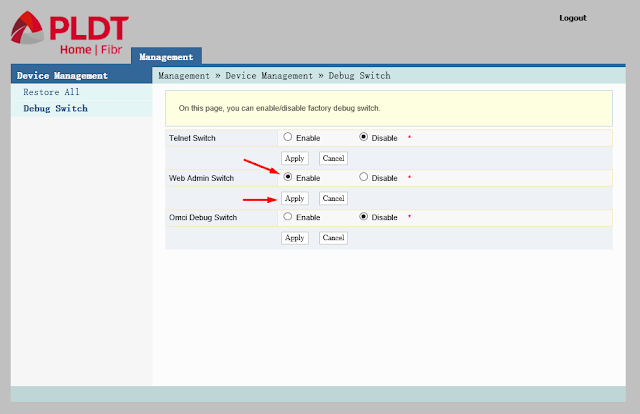
5. Click Debug Switch Menu
6. Switch On (Enable radiobutton) Web Admin Switch
7. Click Apply button
8. Click Logout link
9. On Administrator field, enter: adminpldt
10. Then on Password field, enter: 6GFJdY4aAuUKJjdtSn7dC2x
11. Then click Login button.
12. After enabling Web Admin Switch, just browse http://192.168.1.1/fh
The steps will not persists on power off.
Proof that it works...


The reason that we need to enable adminpldt account is to fully manage our fibr router such as Port Forwarding, Wifi settings and more.
Here are the steps to re-enable adminpldt account:
1. Browse http://192.168.1.1/fh
2. On Administrator field, enter: fiberhomesuperadmin
3. Then on Password field, enter: sfuhgu
4. Then click Login button
5. Click Debug Switch Menu
6. Switch On (Enable radiobutton) Web Admin Switch
7. Click Apply button
8. Click Logout link

9. On Administrator field, enter: adminpldt
10. Then on Password field, enter: 6GFJdY4aAuUKJjdtSn7dC2x
11. Then click Login button.
12. After enabling Web Admin Switch, just browse http://192.168.1.1/fh
The steps will not persists on power off.
Proof that it works...


Subscribe to:
Posts (Atom)